> ## Documentation Index
> Fetch the complete documentation index at: https://docs.orum.io/llms.txt
> Use this file to discover all available pages before exploring further.
# Webhook Management
> Manage webhooks through the Monitor interface.
## Overview
Monitor provides a user-friendly interface for managing your webhook configurations. Admin and Developer users can create, view, update, and delete webhook configurations directly through the portal, eliminating the need to use API endpoints for basic webhook management.
Only users with Admin or Developer roles can access webhook management features in Monitor. Contact your account administrator if you need access.
## Accessing Webhook Management
1. **Log into Monitor**: Visit [monitor.orum.io](https://monitor.orum.io) and sign in with your credentials
2. **Navigate to Webhooks**: From the main navigation header, select **Developer Tools** > **Webhooks**
3. **View Webhook Dashboard**: The webhook management interface displays all your configured webhooks
## Create New Webhook
Click the **"Create Webhook"** button on the webhook dashboard to open the configuration form.
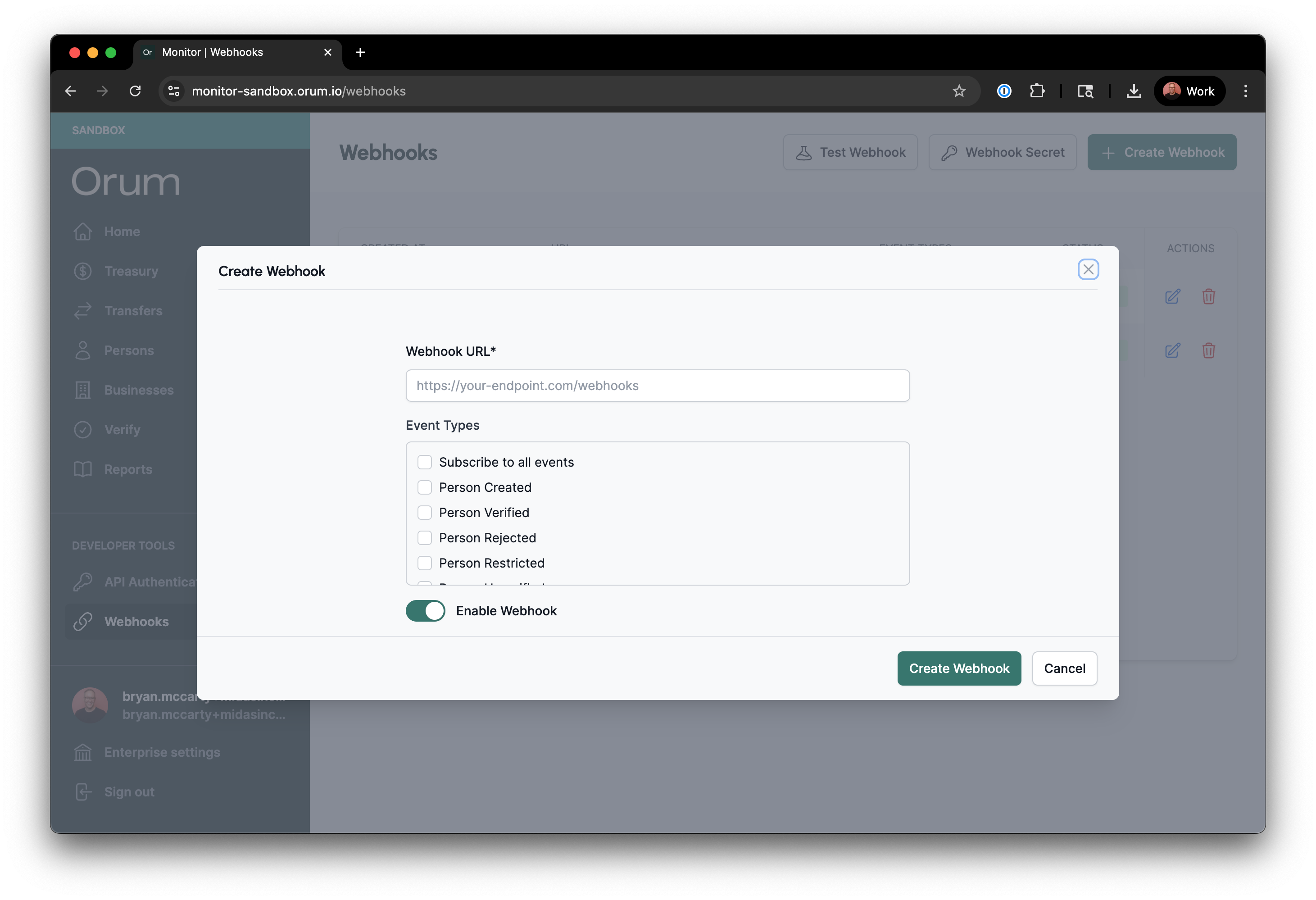 **URL Configuration:**
* Enter your webhook endpoint URL in the **Webhook URL** field
* Ensure the URL is accessible and can receive POST requests
* The URL must use HTTPS
**Event Selection:**
* Choose which event types you want to subscribe to:
* Subscribe all (subscribes to all event types)
* Person events (created, verified, rejected, restricted, unverified, closed)
* Business events (created, verified, rejected, restricted, unverified, closed)
* External account events (created, verified, rejected, restricted, unverified, closed)
* Transfer events (updated)
* Verification events (verify\_account\_updated)
* Subledger events (created)
* Book transfer events (updated)
* Ensure the **Enable Webook** toggle is on (shows green)
* Click **"Create Webhook"** to save and activate the configuration
* Your webhook will immediately start receiving events for selected types
## Test Webhook Endpoint
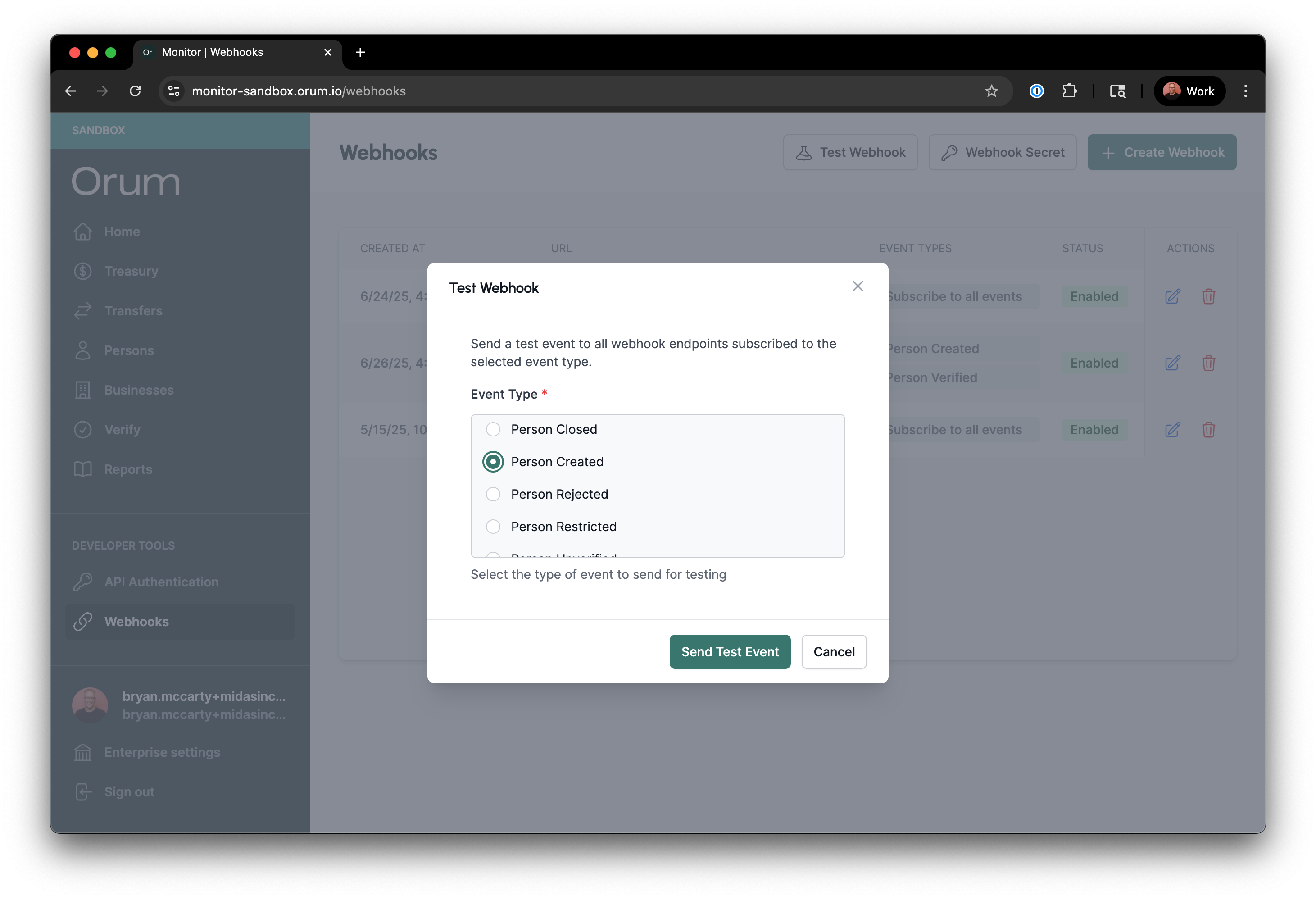
Use the **"Test Webhook"** button and select an event type that your endpoint is subscribed to
Click the **"Send Test Event"** button. An example webhook event is triggered in the structure that you would expect for the selected event type to be sent to your configured endpoint.
**URL Configuration:**
* Enter your webhook endpoint URL in the **Webhook URL** field
* Ensure the URL is accessible and can receive POST requests
* The URL must use HTTPS
**Event Selection:**
* Choose which event types you want to subscribe to:
* Subscribe all (subscribes to all event types)
* Person events (created, verified, rejected, restricted, unverified, closed)
* Business events (created, verified, rejected, restricted, unverified, closed)
* External account events (created, verified, rejected, restricted, unverified, closed)
* Transfer events (updated)
* Verification events (verify\_account\_updated)
* Subledger events (created)
* Book transfer events (updated)
* Ensure the **Enable Webook** toggle is on (shows green)
* Click **"Create Webhook"** to save and activate the configuration
* Your webhook will immediately start receiving events for selected types
## Test Webhook Endpoint
Use the **"Test Webhook"** button and select an event type that your endpoint is subscribed to
Click the **"Send Test Event"** button. An example webhook event is triggered in the structure that you would expect for the selected event type to be sent to your configured endpoint.
 ## Webhook Security
* Orum will digitally sign each webhook request
* You'll need to verify signatures on your server using the public key
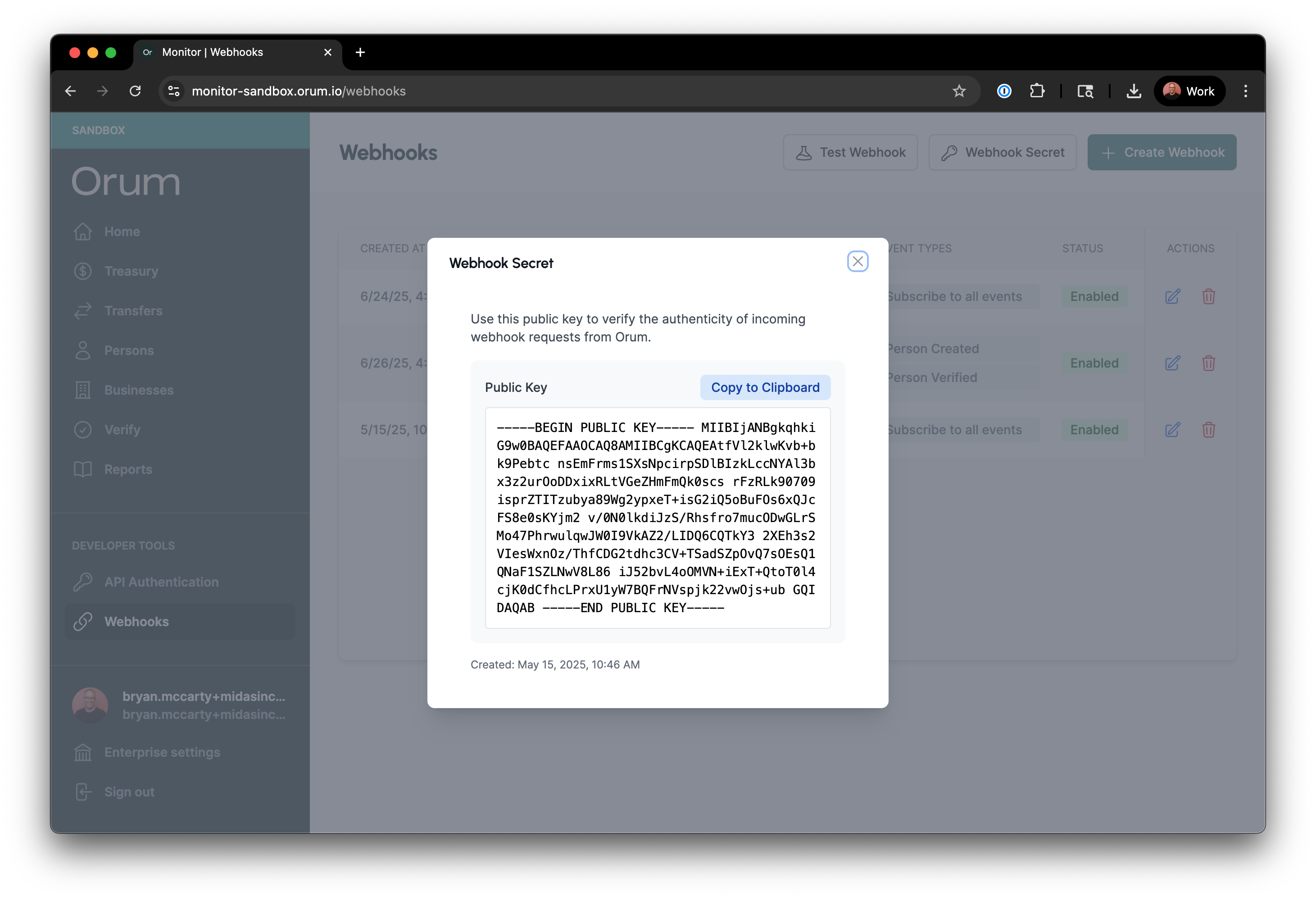
**Obtain Your Public Key**
Click the "Webhook Secret" button near the top of the page and use the "Copy to Clipboard" button to copy it.
## Webhook Security
* Orum will digitally sign each webhook request
* You'll need to verify signatures on your server using the public key
**Obtain Your Public Key**
Click the "Webhook Secret" button near the top of the page and use the "Copy to Clipboard" button to copy it.
 ## Manage Existing Webhooks
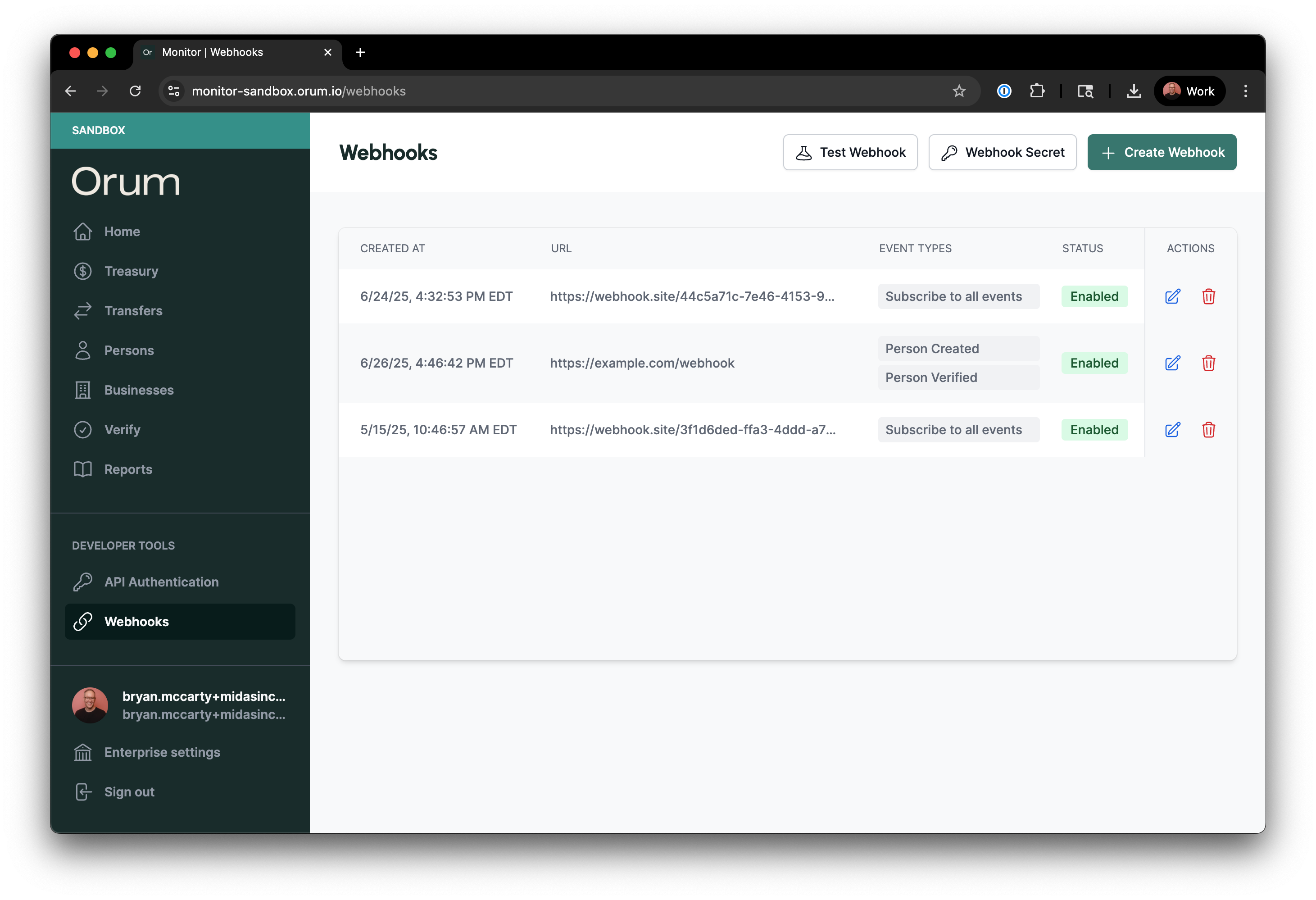
Each webhook configuration displays:
* **Created Date**: When the webhook was configured
* **Endpoint URL**: The destination for webhook events
* **Event Types**: Subscribed event types
* **Status**: Whether the configuration is currently enabled or disabled
## Manage Existing Webhooks
Each webhook configuration displays:
* **Created Date**: When the webhook was configured
* **Endpoint URL**: The destination for webhook events
* **Event Types**: Subscribed event types
* **Status**: Whether the configuration is currently enabled or disabled
 ### Update Webhook Configuration
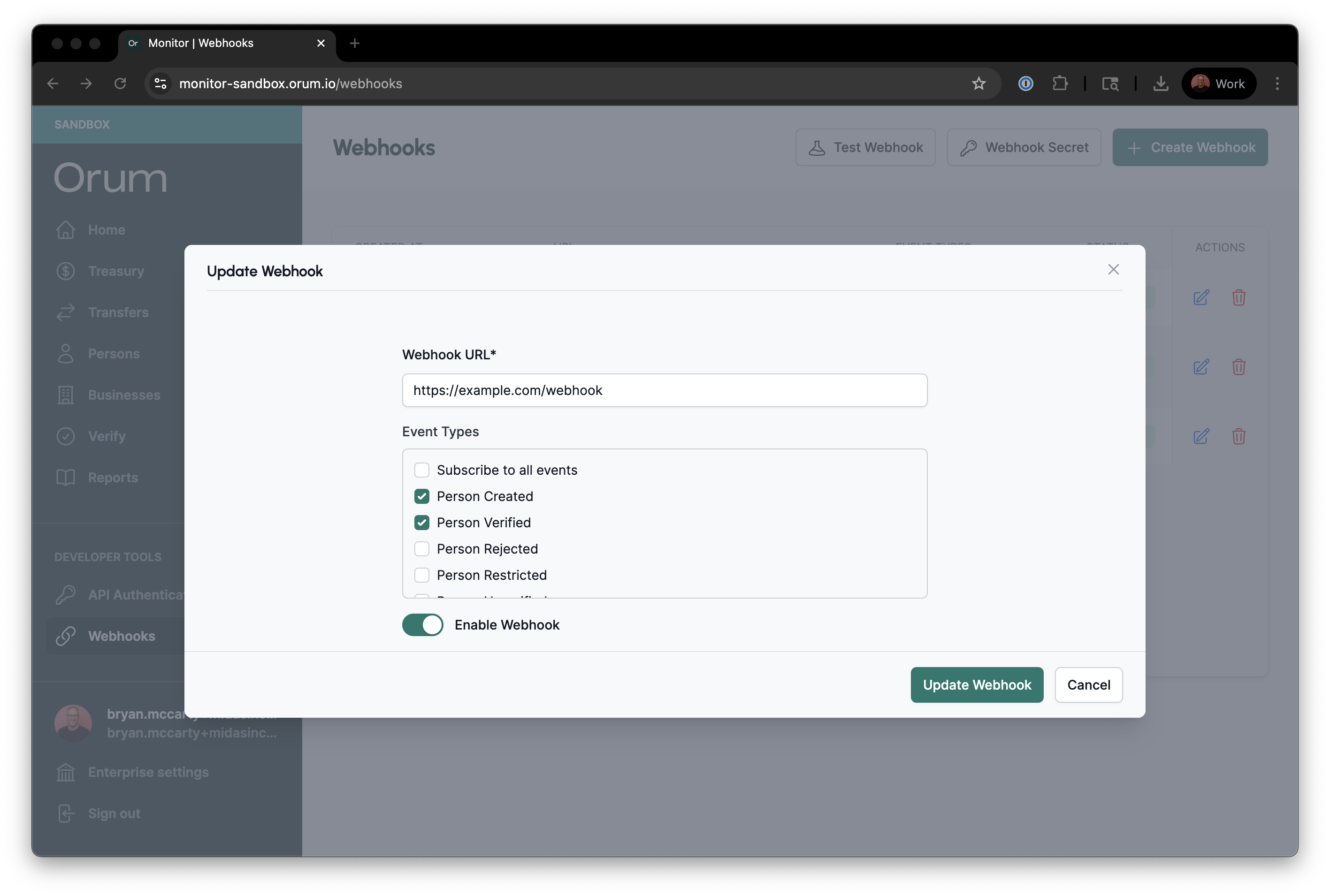
Click on the Edit icon on the webhook configuration you wish to edit.
**Modify any of the following:**
* Endpoint URL
* Subscribed event types
* Enable/disable the webhook
Click **"Update Webhook"** to apply changes. The webhook will immediately use the new configuration.
### Update Webhook Configuration
Click on the Edit icon on the webhook configuration you wish to edit.
**Modify any of the following:**
* Endpoint URL
* Subscribed event types
* Enable/disable the webhook
Click **"Update Webhook"** to apply changes. The webhook will immediately use the new configuration.
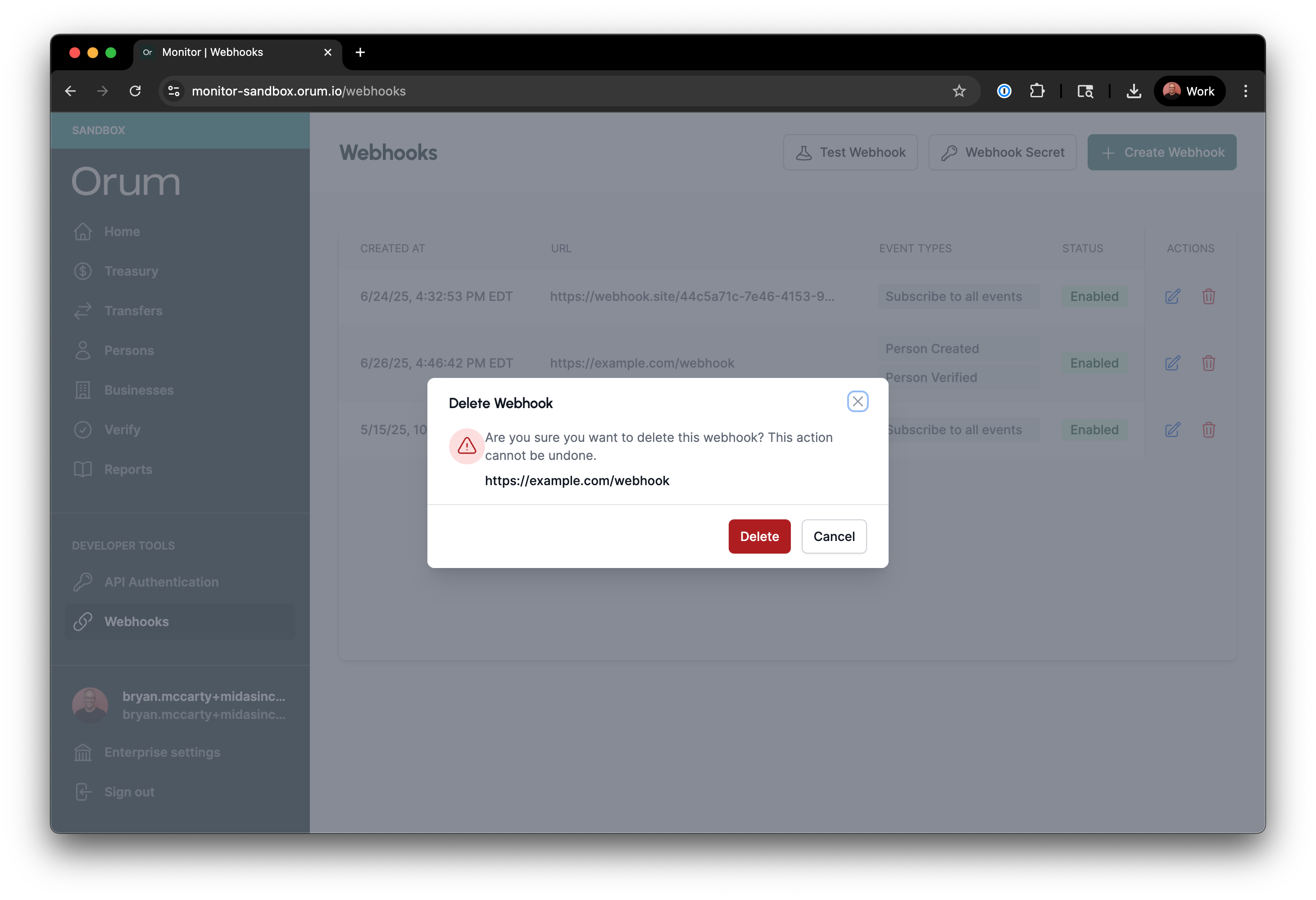
 ### Delete Webhook Configuration
Click on the Delete icon on the webhook configuration you wish to permanently delete.
Click the **"Delete"** button to confirm deletion.
### Delete Webhook Configuration
Click on the Delete icon on the webhook configuration you wish to permanently delete.
Click the **"Delete"** button to confirm deletion.