> ## Documentation Index
> Fetch the complete documentation index at: https://docs.orum.io/llms.txt
> Use this file to discover all available pages before exploring further.
# Payment Initiation
> Execute no code instant payments as well as ACH transfers through Monitor.
Our No Code Transfers solution lets you access instant payments, as well as ACH, without touching Orum APIs for both one-off payments and bulk payments using a Nacha file.
## One-off Payments
To initiate one-off payments through Monitor, follow the below steps:
Use search & filters to find the right person/business
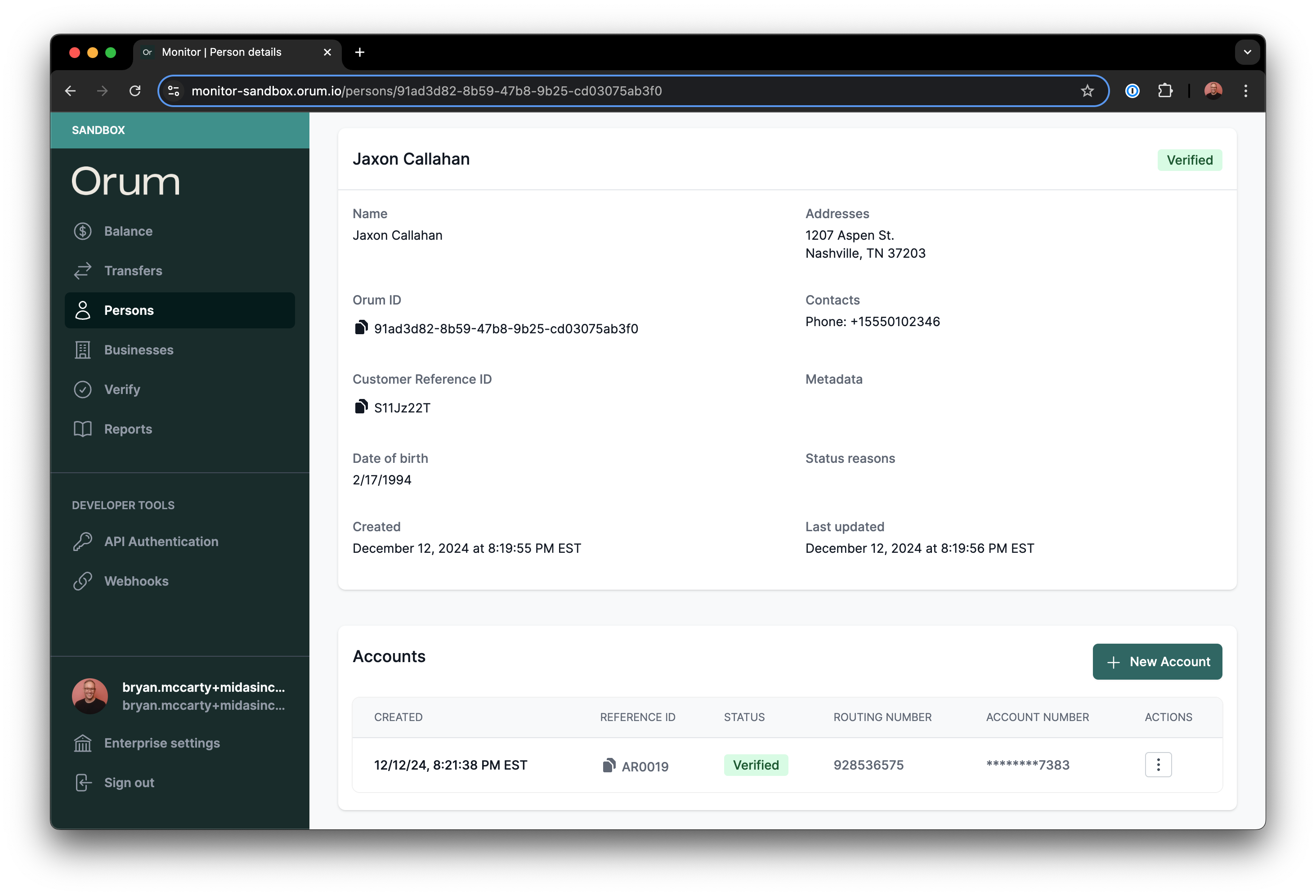
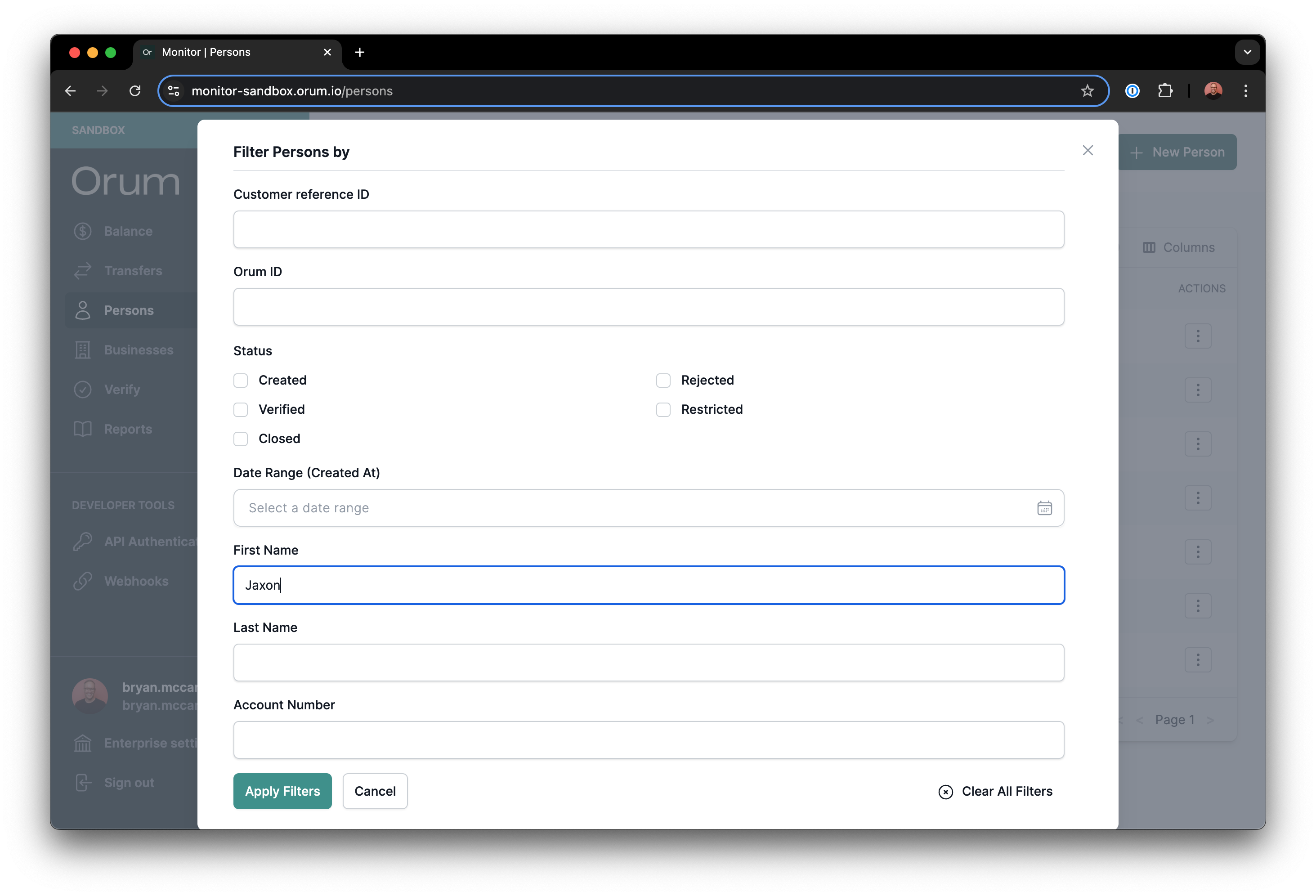 Accounts are located at the bottom of the details page.
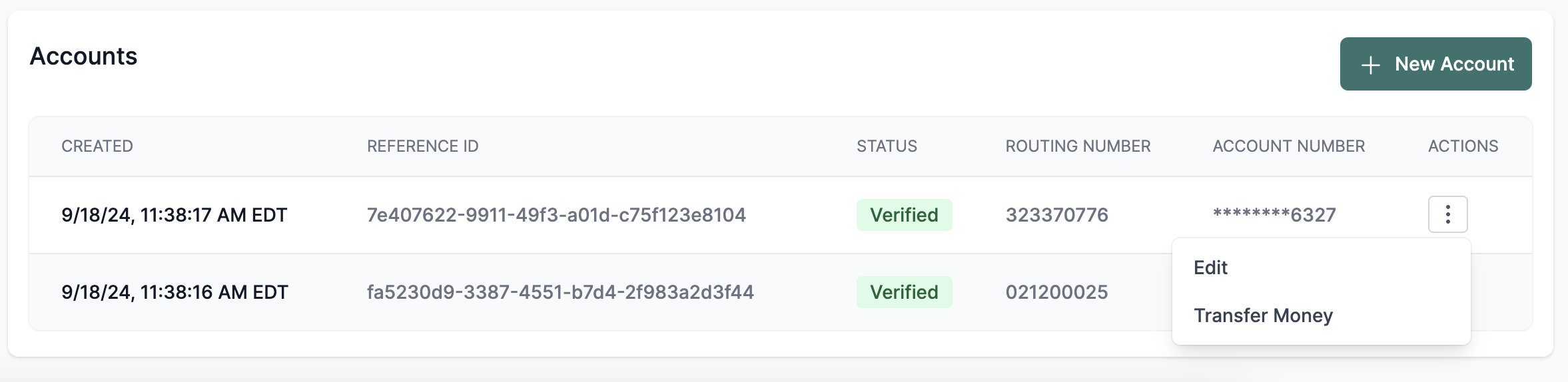
 From the `Actions` menu, select `Transfer Money`.
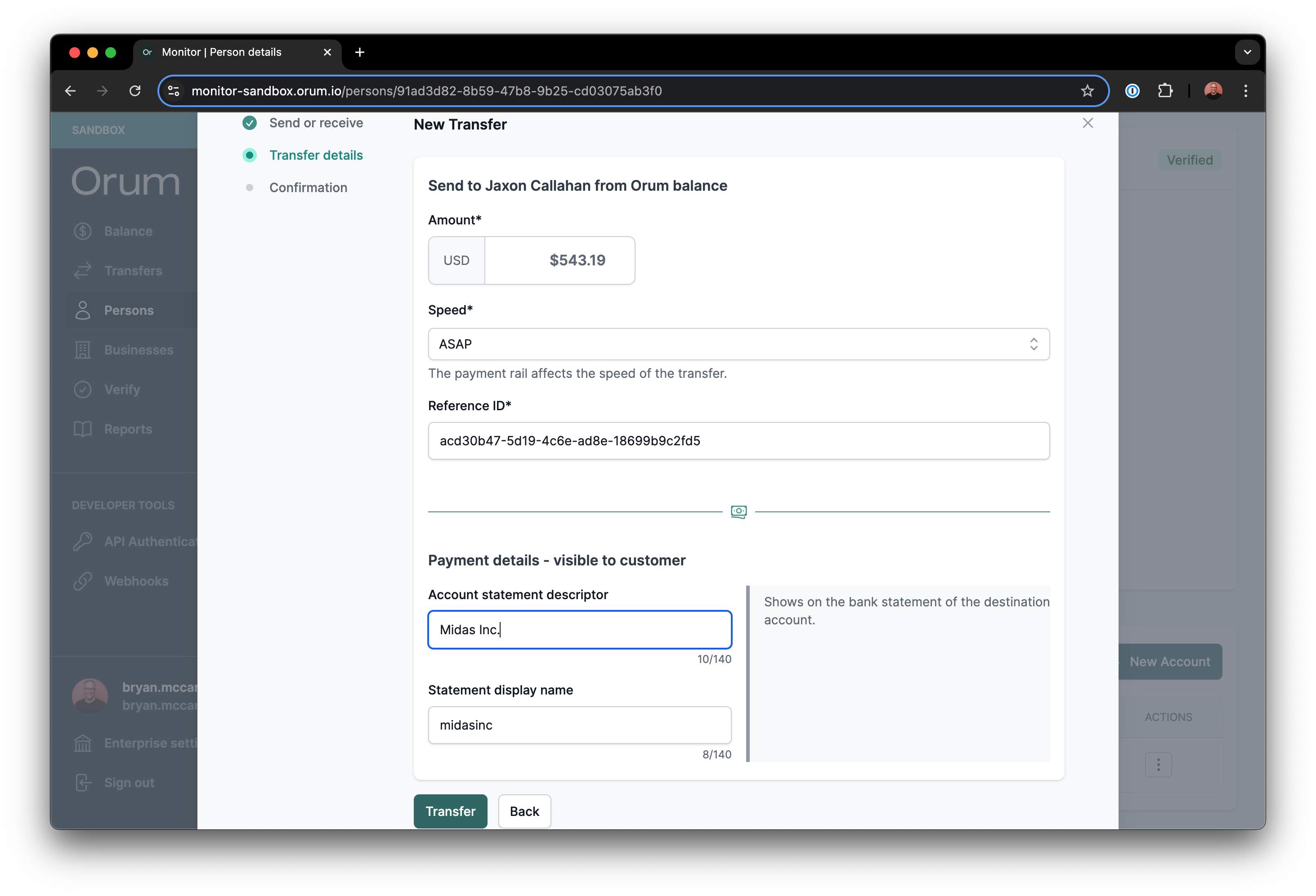
 Choose your payment speed and fill in the appropriate details.
 That's it — you're done. 🎉
## Bulk Payments Using A Nacha File
To initiate bulk payments by submitting a Nacha file, follow the below steps:
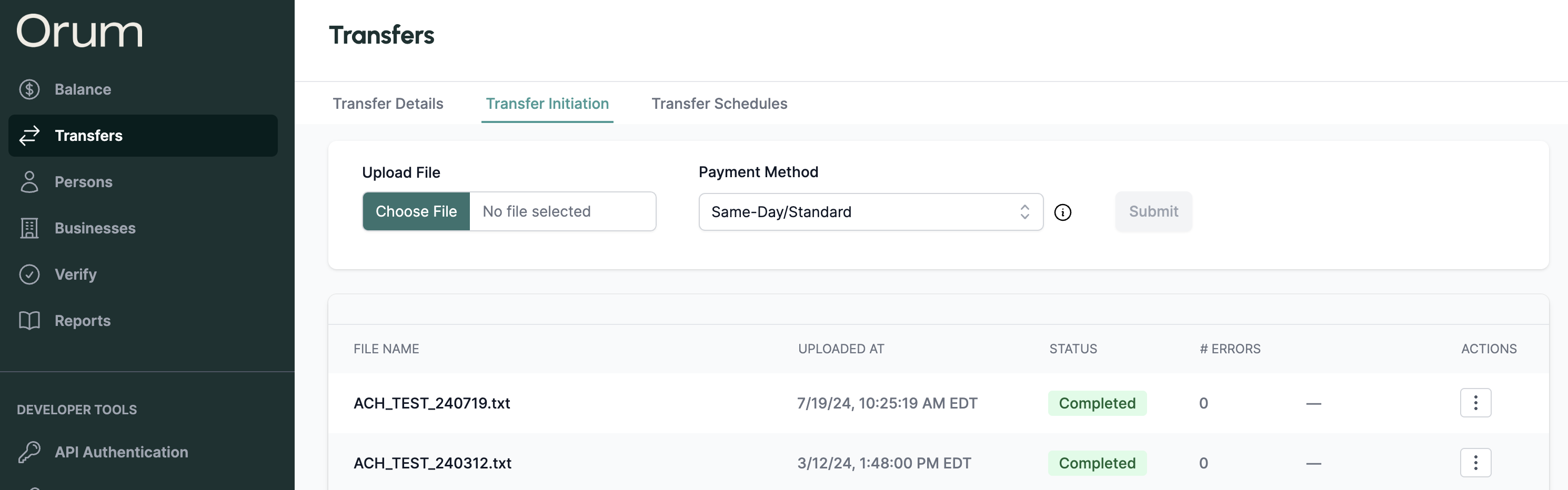
Bulk payments through Monitor are initiated by uploading a Nacha file to the Transfer Initiation section as seen below:
That's it — you're done. 🎉
## Bulk Payments Using A Nacha File
To initiate bulk payments by submitting a Nacha file, follow the below steps:
Bulk payments through Monitor are initiated by uploading a Nacha file to the Transfer Initiation section as seen below:
 You must then generate an *unbalanced* Nacha file with payment instructions to be completed.
For information on unbalanced Nacha files - see [here](https://achdevguide.nacha.org/ach-file-overview).
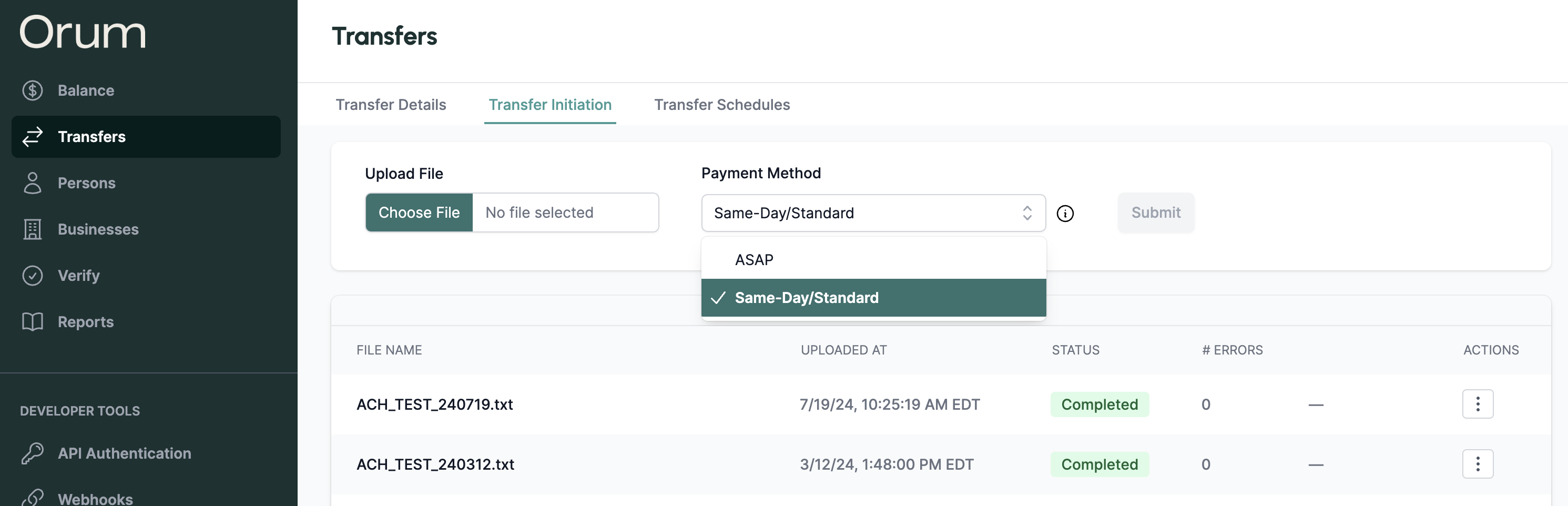
Upload your unbalanced Nacha file to the file upload box and select the desired speed of payments.
You must then generate an *unbalanced* Nacha file with payment instructions to be completed.
For information on unbalanced Nacha files - see [here](https://achdevguide.nacha.org/ach-file-overview).
Upload your unbalanced Nacha file to the file upload box and select the desired speed of payments.
 Once a file is submitted, we will first check for validity of the Nacha file.
If the file is valid, then we will move on to initiating payments using the instructions.
If the file is not valid, we will fail the upload and report errors in the "Errors" section of the table. No payments will be initiated.
If you select ASAP, we will attempt to initiate all transfers via FedNow first. If a transfer in the file is not eligible, then it will automatically fallback to ACH.
Once the file has completed processing, monitor the status of the initiated transfers in the Transfer Details table.
Only users with Admin or Payment Initiator roles in Monitor are able to initiate payments. See [here](https://docs.orum.io/guides/monitor) for additional information on roles and permissions.
Once a file is submitted, we will first check for validity of the Nacha file.
If the file is valid, then we will move on to initiating payments using the instructions.
If the file is not valid, we will fail the upload and report errors in the "Errors" section of the table. No payments will be initiated.
If you select ASAP, we will attempt to initiate all transfers via FedNow first. If a transfer in the file is not eligible, then it will automatically fallback to ACH.
Once the file has completed processing, monitor the status of the initiated transfers in the Transfer Details table.
Only users with Admin or Payment Initiator roles in Monitor are able to initiate payments. See [here](https://docs.orum.io/guides/monitor) for additional information on roles and permissions.